

Victron
Supported Devices
| Device Type | Modbus TCP (Ethernet) | RS485 | Curtailment |
|---|---|---|---|
| Multiplus II | ✅ | ❌ | ✅ |
| Multiplus RS | |||
| Cerbo GX | |||
| Venus GX | |||
| Inverters with built in GX device | |||
| Other Victron devices |
[!DANGER]
Important
If you already have your PV or other devices connected to the Victron system make sure not to add them again to the a-TroniX Controller. This can cause double measurements.
Note
Devices of other brands: we recommend connecting them directly
A Victron GX device can measure and steer equipment of other brands (for example PV inverters via zero feed-in, EV chargers or heat pumps). For devices that the a-TroniX Controller supports itself, we recommend connecting them directly to the a-TroniX Controller rather than steering them through the Victron system. Check the supported devices overview to see which devices we support.
Devices that we do not support can of course stay connected to the Victron system. In that case, do not add them to the a-TroniX Controller as well (see the note above about double measurements).
Wiring
For correct ethernet wiring: Follow the the guidelines for ethernet wiring.
Video
Configuration
1. Modbus TCP must be enabled.
In the settings of the inverter:
- Go to "Settings"
- Go to "Services"
- Go to "Modbus TCP"
- Select "Enable Modbus/TCP."
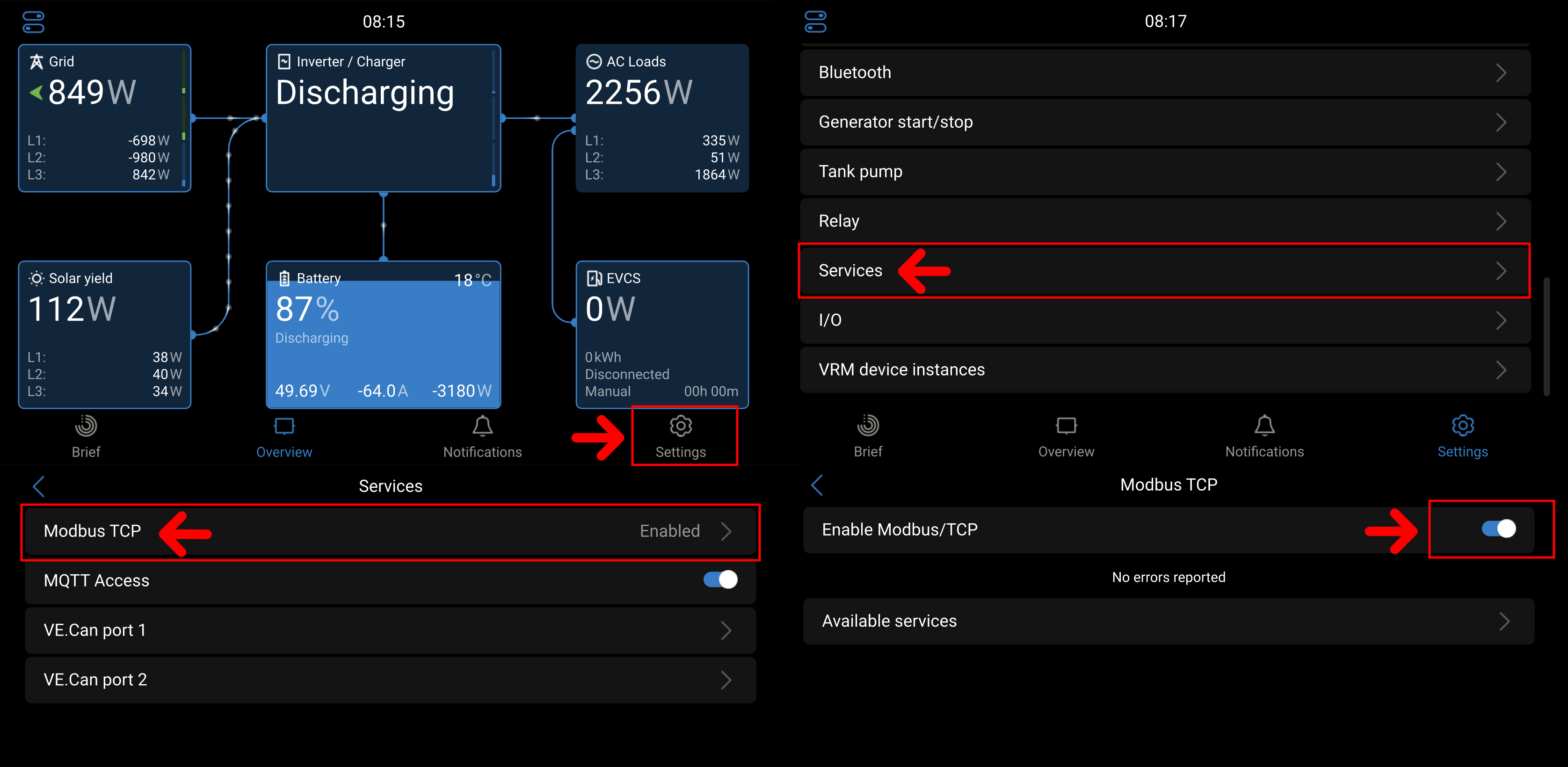
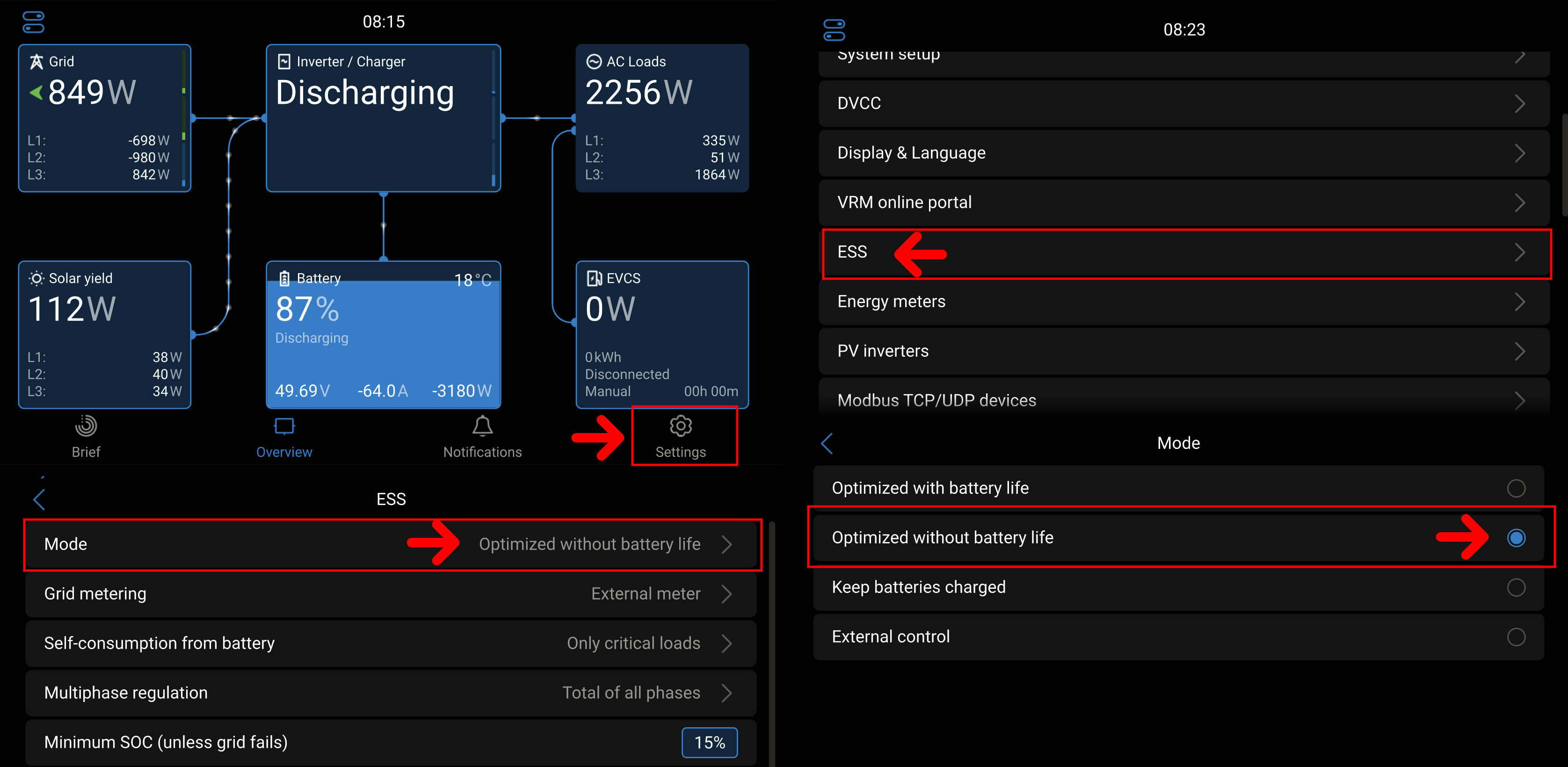
2. The ESS must be in a mode that allows steering. In the inverter settings, go to:
- Go to "Settings"
- Go to "ESS"
- Select mode "Optimized (without BatteryLife)"
[!DANGER]
Important
IF THIS MODE IS CHANGED, THE SYSTEM WILL NOT WORK PROPERLY!
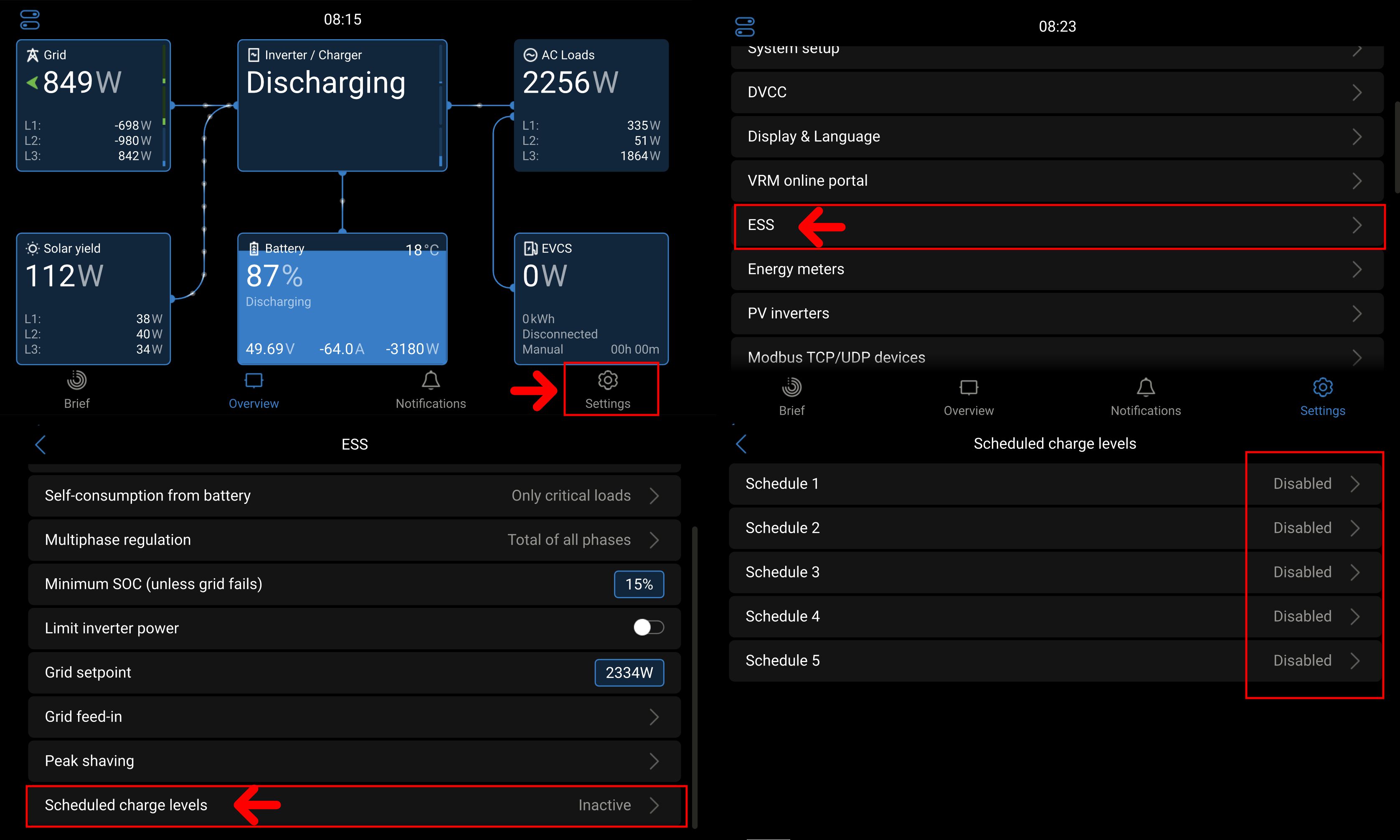
3. Disable scheduled loading
- Go to "Settings"
- Go to "ESS"
- Go to "Scheduled charge levels"
- Disable all scheduled charge levels
4. Activate switch
The switch at the bottom of the inverter must be in position 1 to accept the control.

Troubleshooting
If your inverter still is not working properly, please check the following:
- Dynamic ESS must be disabled.
- Are your grid limits set correctly?
- Are your groups set correctly in the controller? (See example below)
- If the battery is oscillating, set the scheduler run time to 5s minimum in the advanced settings.
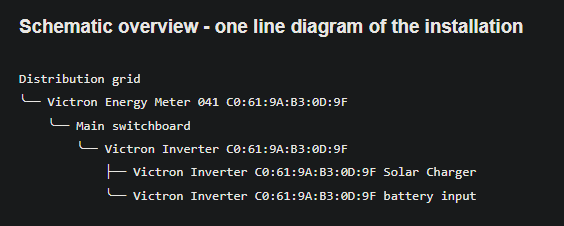
If you experience problems with the control of the inverter, please follow these steps:
- Before following these steps make sure to remove the Victron inverter from the a-TroniX Controller controller so that the controller doesn't interfere with the testing.
- Now go to the Victron interface. Under the "Settings" tab, go to "System Setup".
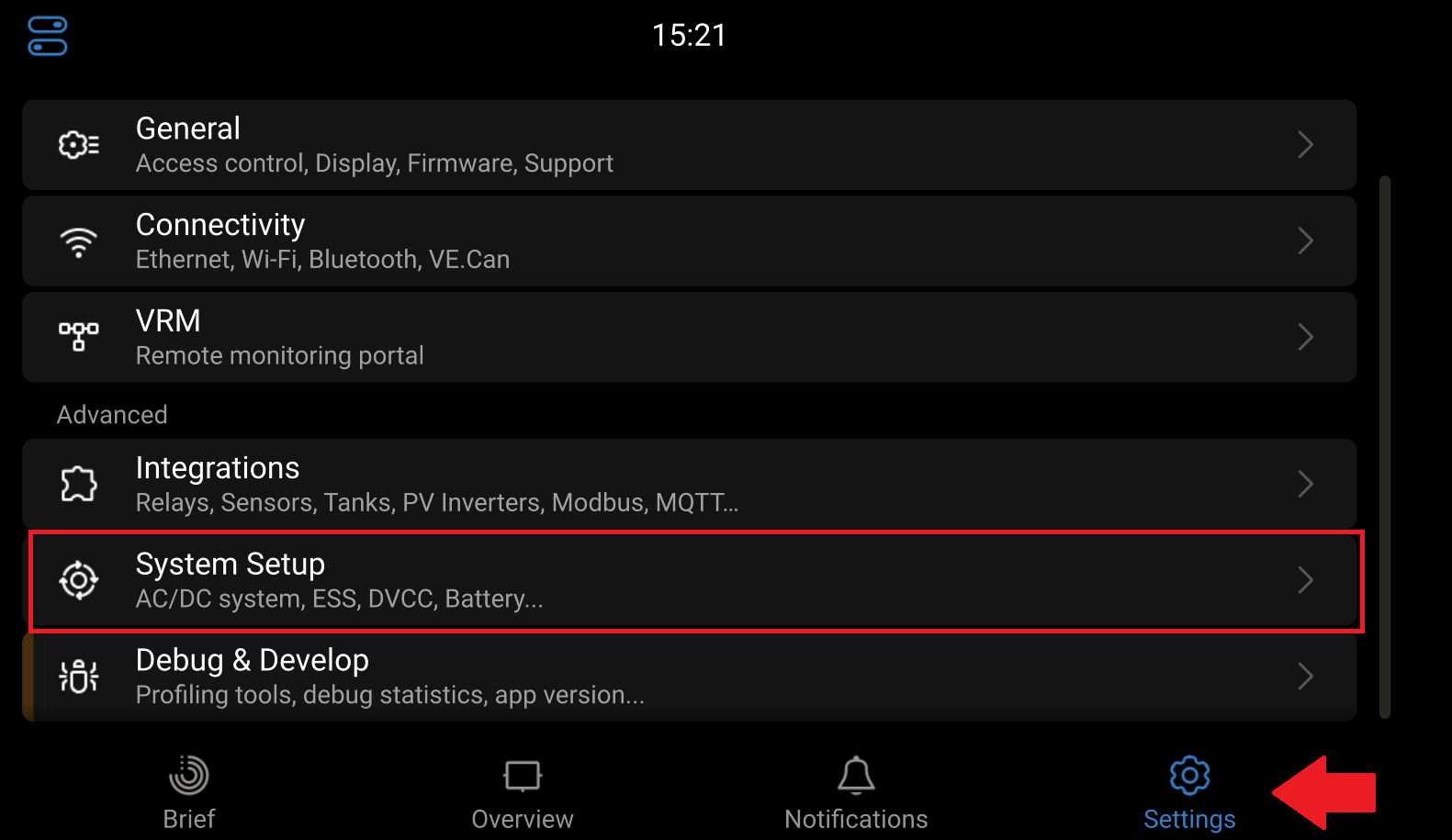
- Go to "ESS".
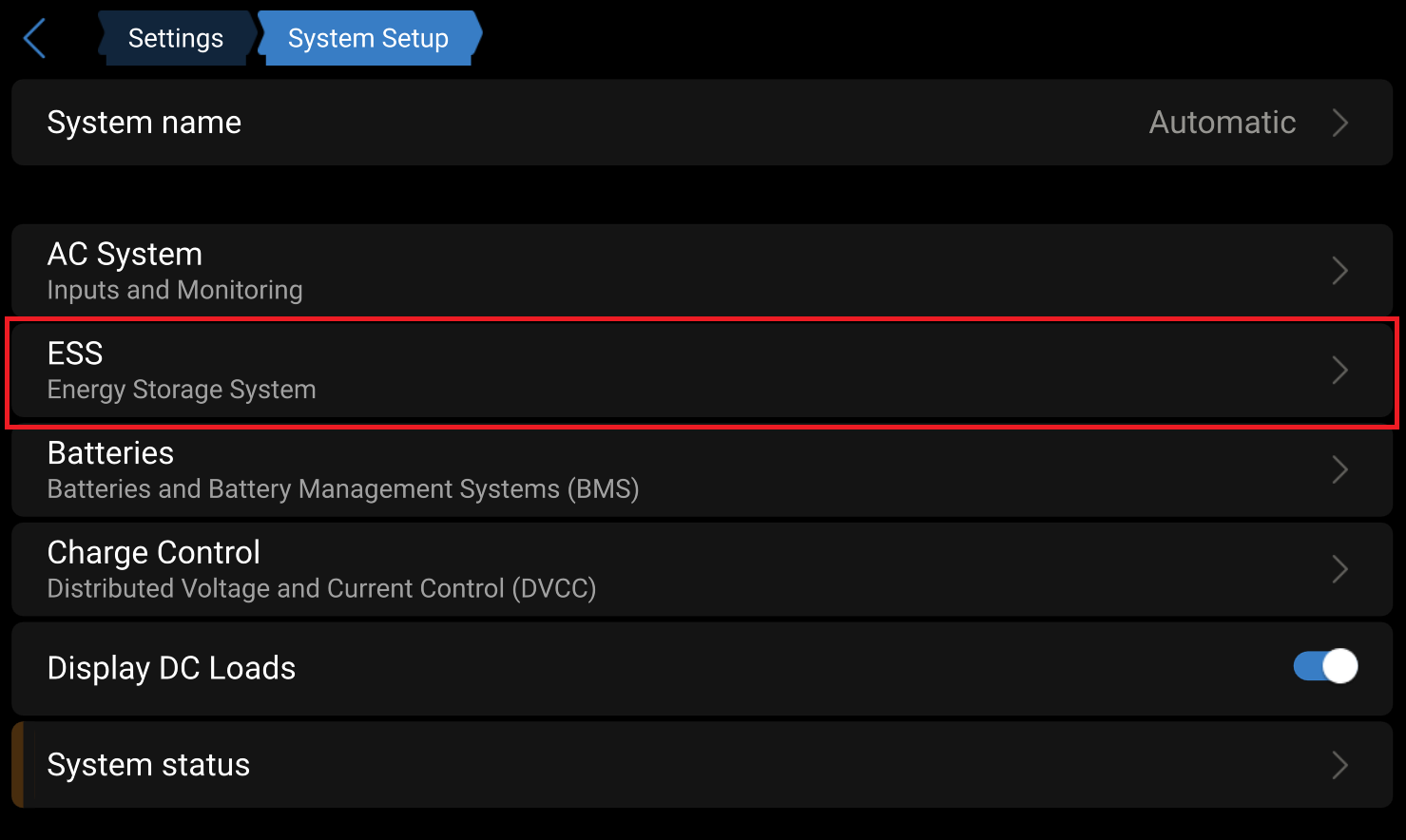
- Press "Grid setpoint".
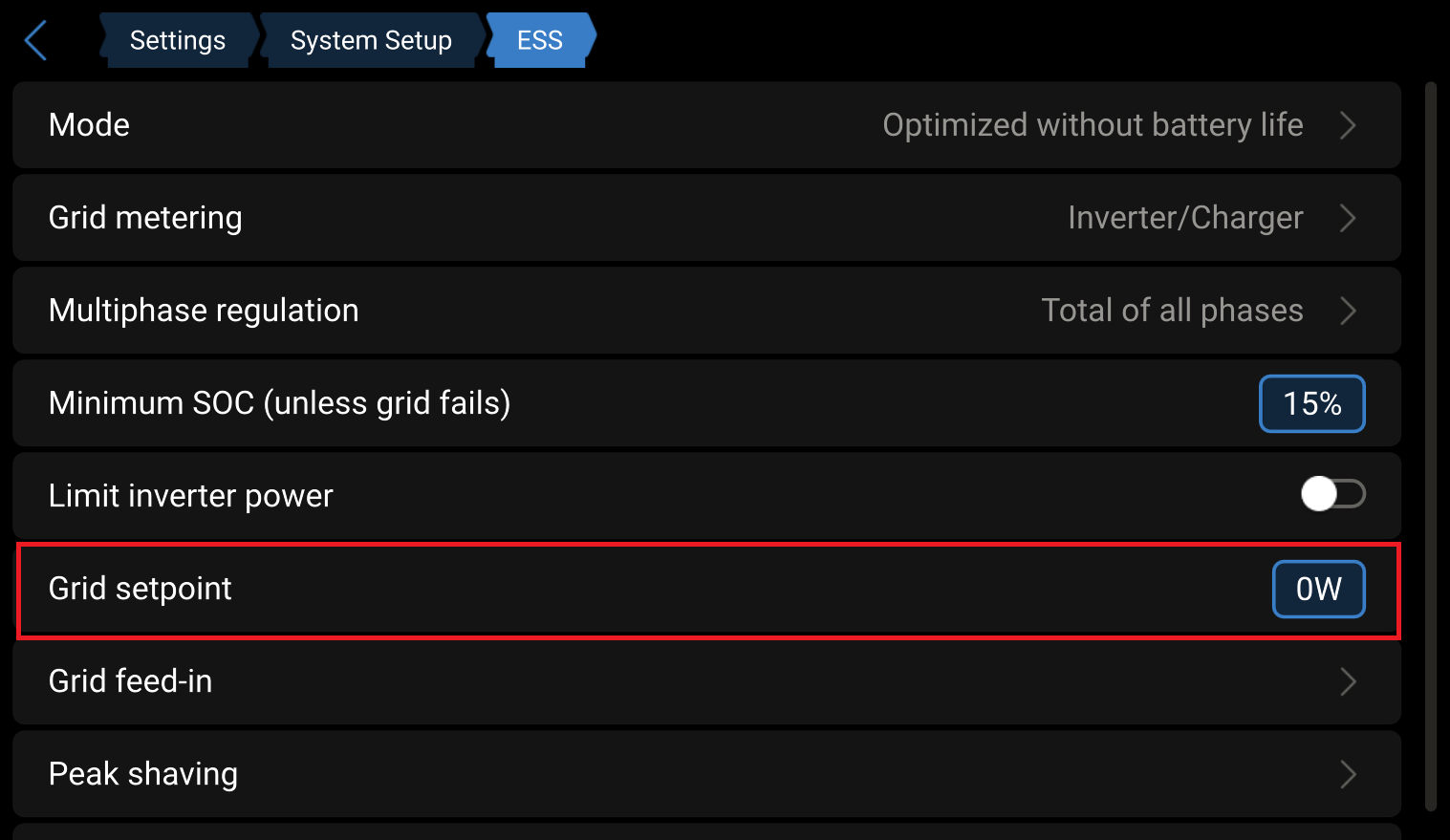
- Set the grid setpoint to a certain value so that the battery will start charging or discharging.
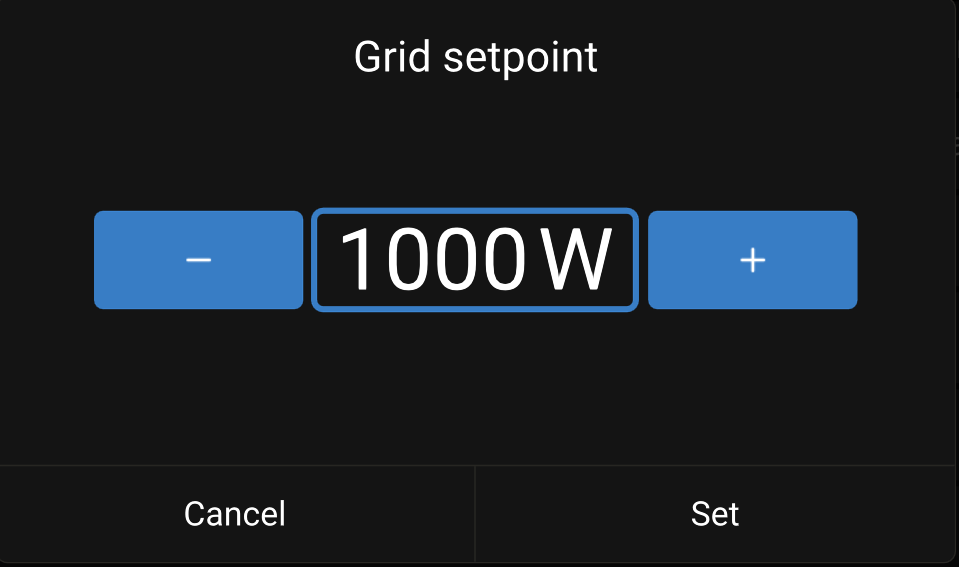
- Validate on the overview page that the battery is charging or discharging.
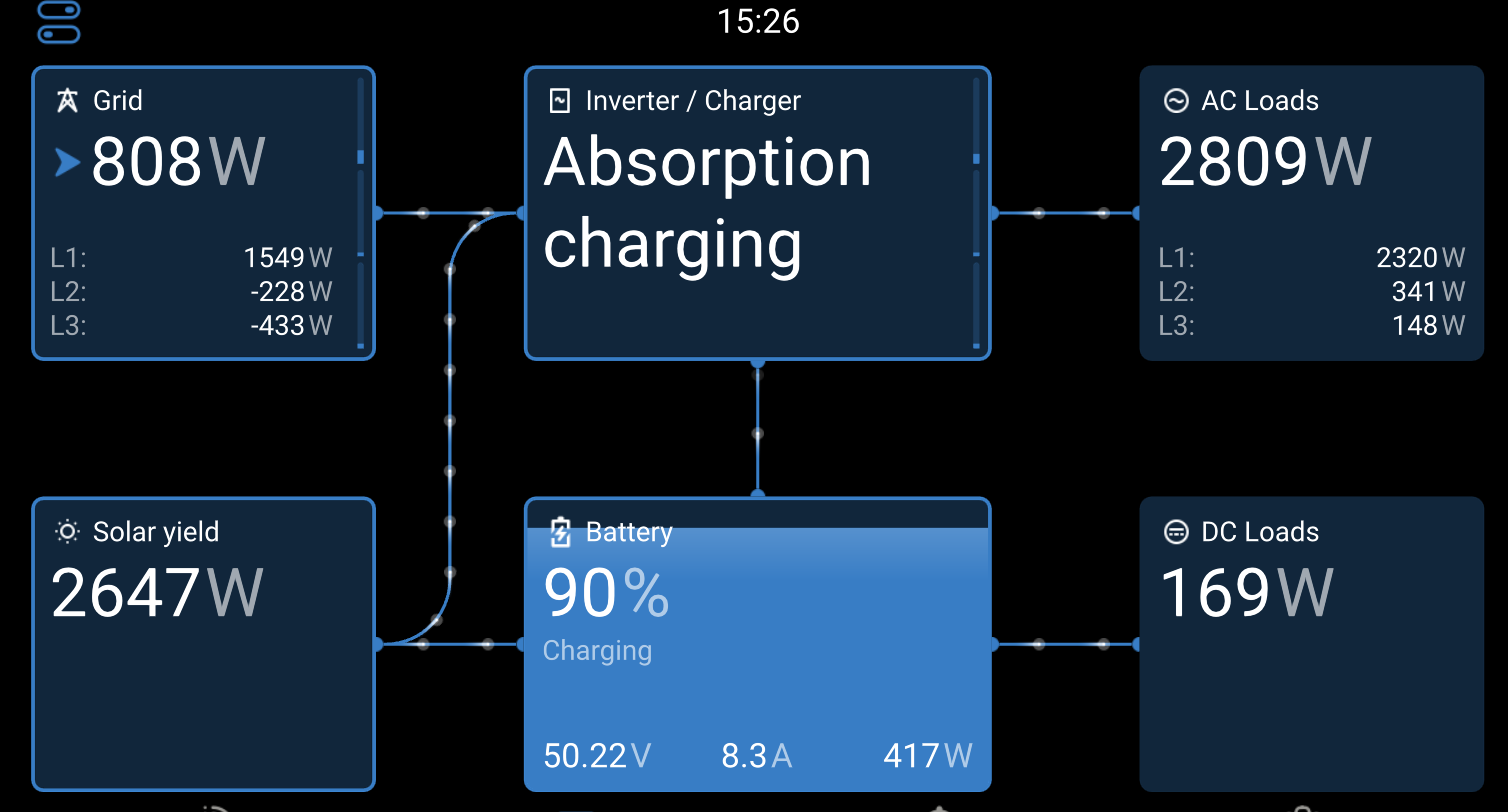
- If there is no response to the setpoint then this indicates there is an issue with the Victron inverter, rather than the a-TroniX Controller controller."