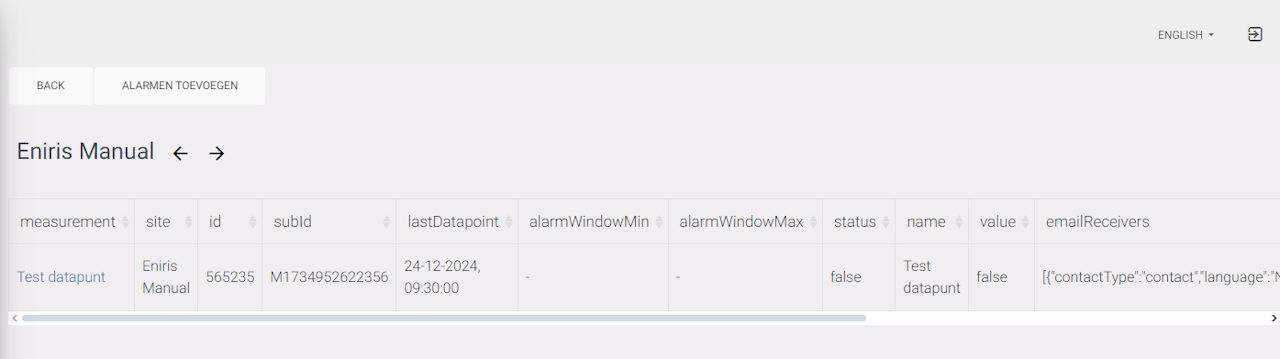
Adding a new alarm
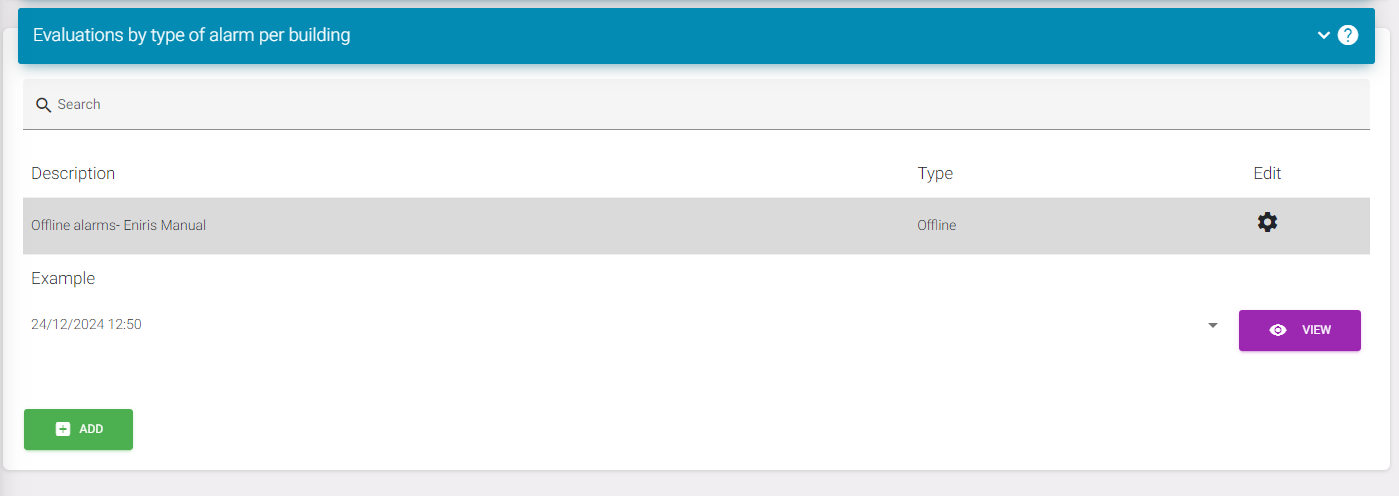
To add an alarm you need to enter 3 fields.
-
Type: This is to say what type of alarms you want to get an email for. (This depends on what you configured in the datapoints themself)
-
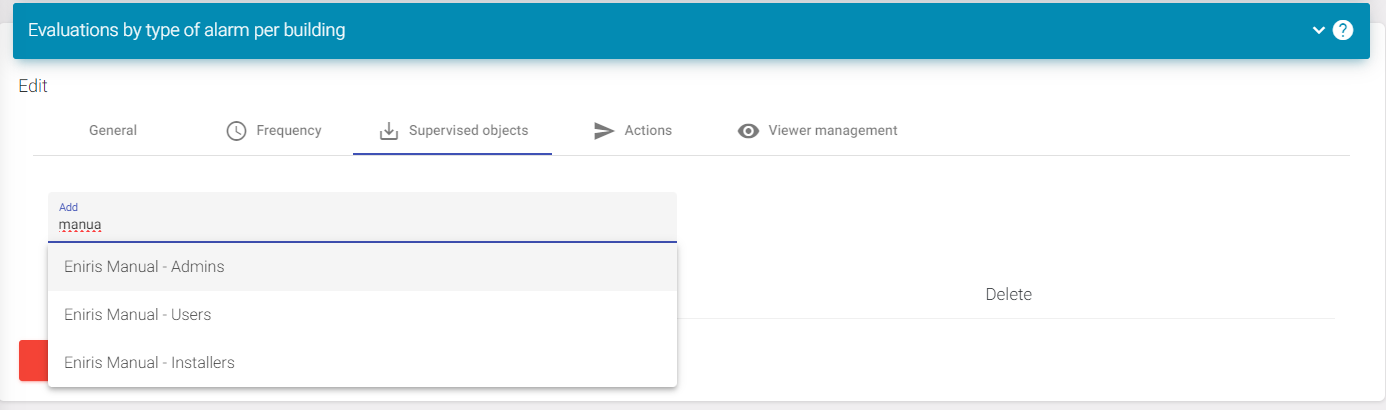
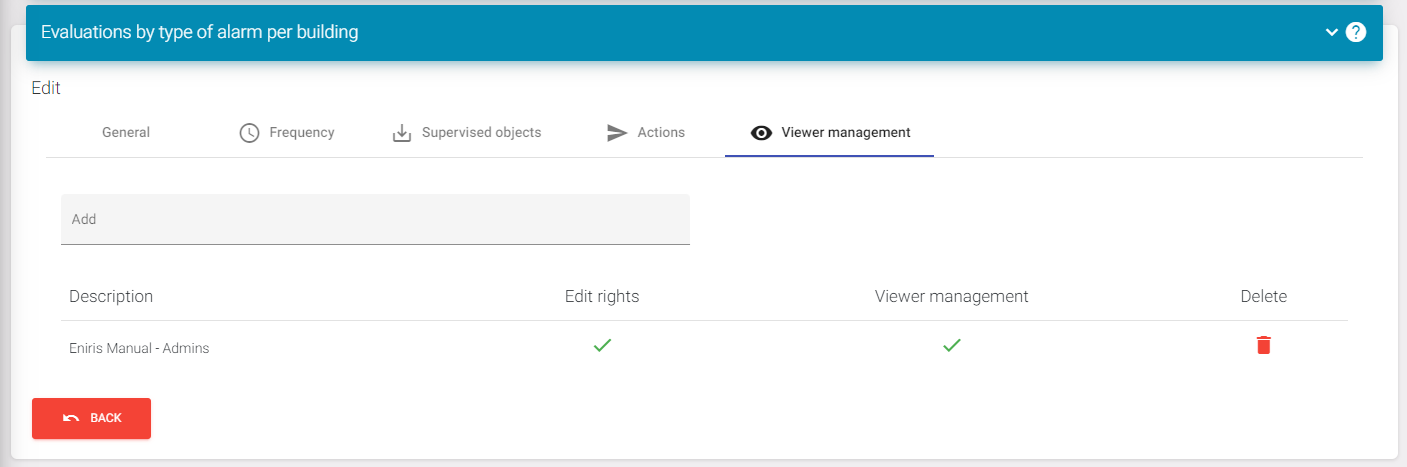
Creator role: For this you look for the building you want an alarm for. This is only per building so you'll need to set up multiple alarms like this if you have more buildings. Here you pick one of the roles, this does not matter what.
-
Description: Name of your alarm. I recommend using type of alarm - name of building. This keeps it easy to manage.
When these are filled in you can click on 'Frequency' and go to the next step.
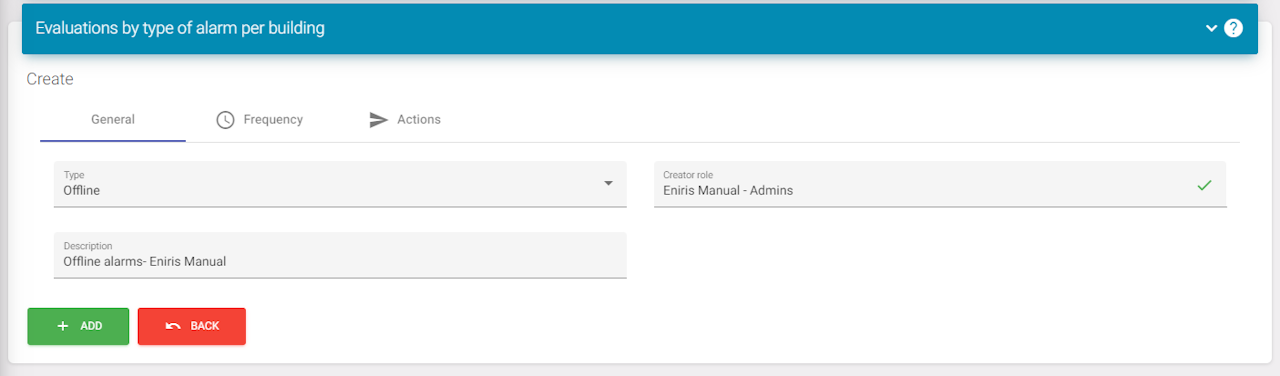
Frequency
This is standard set to the highest frequency. You don't want to edit this. Now you have to click on 'Actions' and go to the next step.
Deprecated:
- Advanced settings
Actions
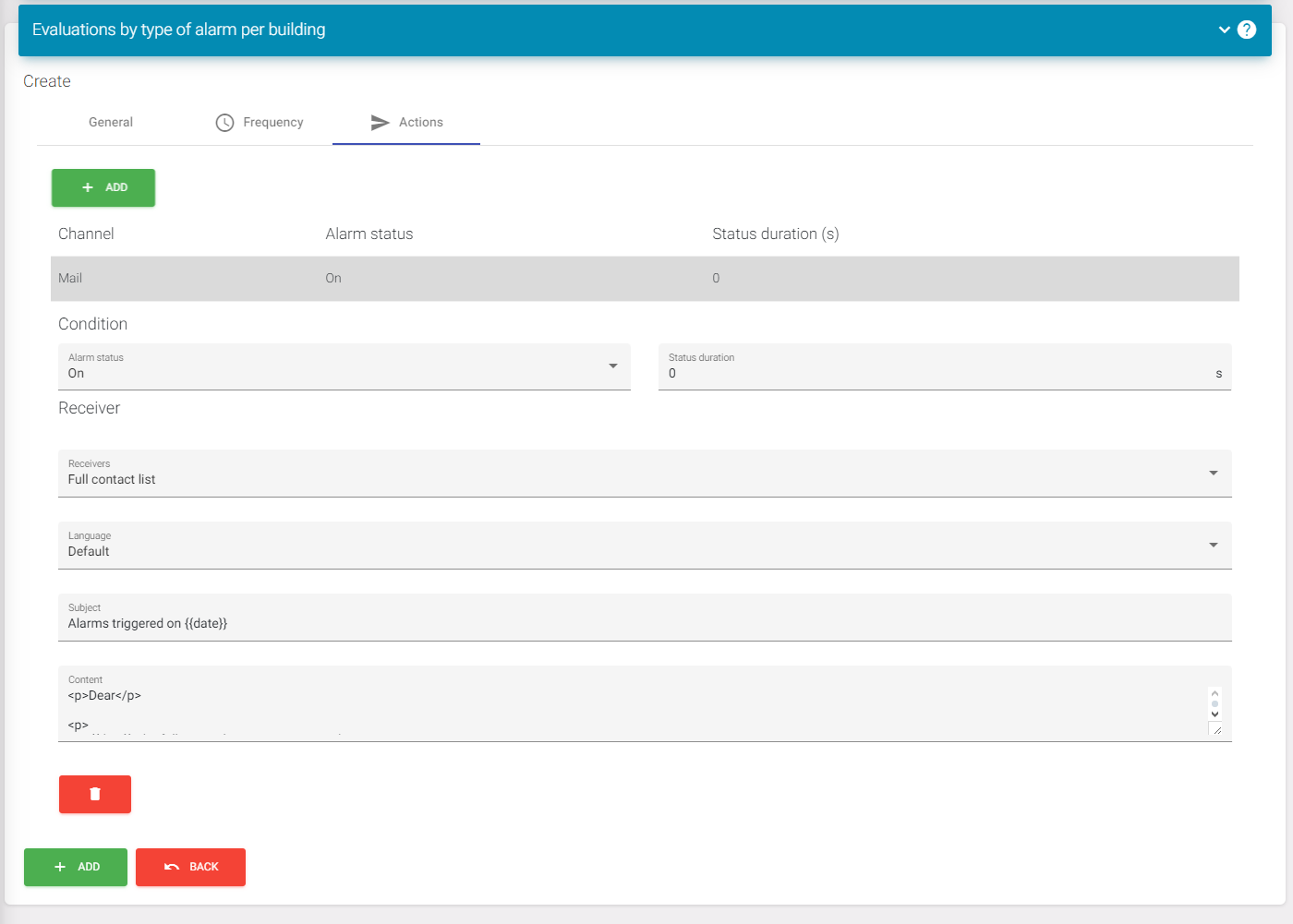
Once here you need to click on the top most 'Add'. This will add a mail action.
You can then press this to open the menu as shown in the screenshot.
Configuration:
You can make 2 alarms if this is needed. 1 for when the alarm is triggered and 1 for when it' back to normal. This can be configured with the 'Alarm status' and adding 2 actions (1 for each).
On the receivers, you can select 'Fixed'. This will show a box where you can add the emails of the people you want to receive the email.
You can select a language to set up mails for specific languages.
The subject will just be the subject of the email. You can see there is a parameter defined here date this will show the date of the alarm. Later in this tutorial you will see more parameters.